Think of a SQL Server instance that hosts a mission-critical OLTP application which runs smoothly. Running a poorly written ad-hoc query, ETL jobs, maintenance operations, or one noisy tenant in a multi-tenant environment may suddenly consume excessive CPU and memory resources, causing full workloads to slow down. What if you can classify the incoming requests and based on priority assign valuable resources (CPU, memory and physical IO) accordingly. In today's article, we will explore how to accomplish this. Let's fasten your seat belt.

Figure-2: Resource Governor
Key Concepts
Resource Governor
SQL Server Resource Governor is a feature that allows DBAs to control how much resources like CPU, memory, disk IO are allocated to different users, applications, or workloads running on the same SQL Server instance. Even you can control MAXDOP or memory grant of each query. Similar to bandwidth throttling to ensure that one user does not consume all bandwidth and exhaust the system.
Resource Pool
It is the collection of physical resources of the server, like CPU, memory, and disk I/O. It could be:
- Built-in - Two pools are always there.
- internal - Reserved for SQL Server's internal processes. You cannot modify it.
- default - By default all user sessions use this pool unless they are explicitly assigned to other pools.
- User-defined - You can create multiple user defined resource pools and assign them to your specific workloads.
- External pool - You can configure External pool resources for the external processes like R, rterm.exe, BxlServer.exe, and python.exe etc.
Workload Group
A Workload Group is a collection of tasks or queries those are club together based on the classification criteria applied to the sessions. It acts as a logical grouping mechanism that allows SQL Server to apply settings such as MAXDOP, maximum size of a memory grant for each query executing in a workload group. There are:
- Built-in - Two pools are always there.
- internal - Mapped to SQL Server's internal resource pool.
- default - Mapped to SQL Server's default resource pool.
- User-defined - You can also create user defined workload group.
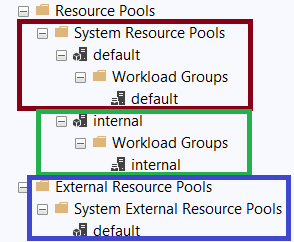
Figure-2: Resource pool's internal, default and external pools.
Classification
When a new user session connects to SQL Server, classification process determines the appropriate workload group and corresponding resource pool. Typically, classifier function makes this decision based on attributes such as login name, application name, host name, or other connection properties. You can write user-defined classifier function.
How it Works
From database engine point of view, for every incoming request session is:
- Classified based on classifier function.
- Assigned to corresponding workload group. The workload group imposes its policies on all requests, and uses the corresponding resource pool.
- Resource pool facilitates and enforces resource limits to the session.
Hands on Resource Governor
So far we have covered some key concepts. Now, it is the time to configure it. You can configure the resource governor using TSQL and SSMS. We will focus on SSMS only.
Enable/Disable Resource Governor
Right click on resource governor from Object Explorer ->Management->Resource Governor and press Enable/Disable option (Figure-3). Alternatively, use Query Snippet-1 to enable/disable resource governor using TSQL.
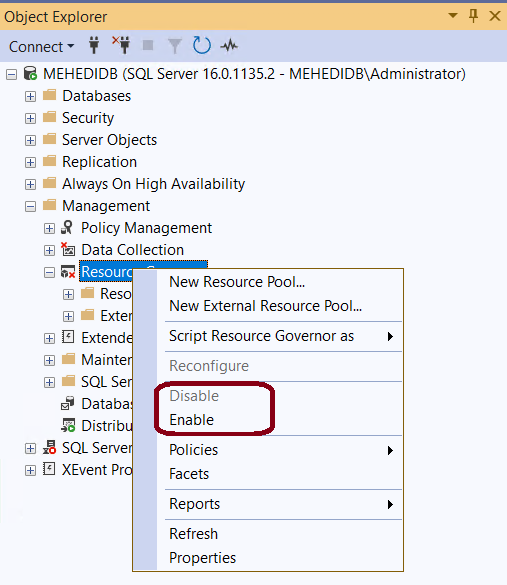
Figure-3: Enable/Disable resource governor
-- Enable resource governor
Alter Resource Governor
Reconfigure

-- Disable resource governor
Alter Resource Governor
Disable

-- Query Snippet-1
Creating Resource Pool
Right click on New Resource Pool from Object Explorer ->Management->Resource Governor->Resource Pools (Figure-4).
- Name - Give a meaningful name. For my case it is RPSlowResourcePool.
- Minimum CPU % - Minimum average CPU usage, if there is any CPU contention.
- SUM(All Minimum CPU % of all pools) should be ≤ 100%.
- Range: 0 ~ 100%.
- If there is no CPU usage in a particular pool, other pools may use it.
- Maximum CPU % - Maximum average CPU usage, if there is any CPU contention.
- Range: Minimum CPU ~ 100%.
- Must be ≥ Minimum CPU %.
- Cannot be ≠ 0.
- Minimum Memory % - Note that the pool will acquire this percentage memory and will not release it even the pool is idle.
- Maximum Memory % - Maximum memory that can be allocated to this pool. Must be ≥ Minimum Memory %.
*** If the internal resource pool requires the CPU, SQL Server will override the rule and allocate to internal pool.
*** For multiple resource pools, the cache size will be large as each resource pool will have its own data and procedure cache.
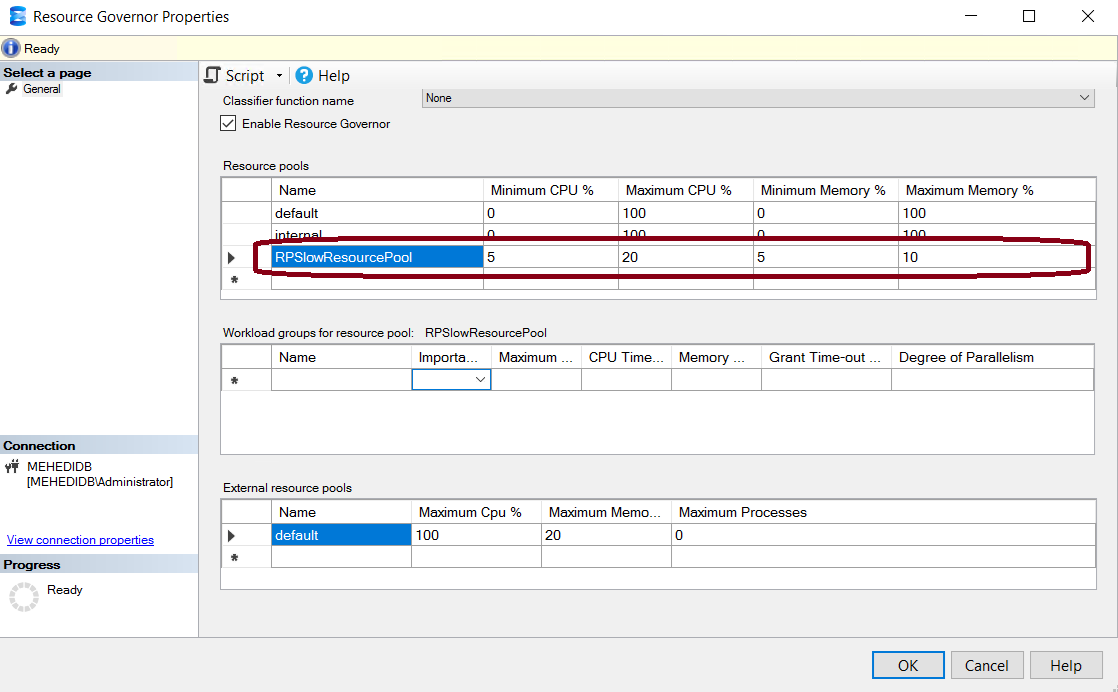
Figure-4: Creating a new resource pool
Creating Workload Group
Click on New Workload Groups from Object Explorer ->Management->Resource Governor->Resource Pools->(Your Resource Pool, in this case RPSlowResourcePool)->Workload Groups (Figure-5). We will create two groups, WLGroupFast and WLGroupSlow.
- Name - Name of the workload group, like WGSlowWorkloadGroup.
- Importance - Relative importance of this workload group. Available values are Low, Medium, High.
- Maximum Requests - Number of concurrent requests the workload group can handle.
- Any number (in our case 100) - System will process this much (100) requests concurrently. 101th requests will be in queue.
- 0 - means unlimited.
- CPU Time - Maximum amount of CPU time that will be allocated for this request.
- This is a request only and workload group may ignore this settings.
- 0 - means unlimited.
- Memory Grant % - Max amount of memory allocated to this pool.
- Range: 0 ~ 100%.
- Default: 25%.
- Grant Time-out (sec) - Maximum seconds that a query will wait for receiving buffer memory.
- Degree of Parallelism - MAX DOP settings of this workload group.
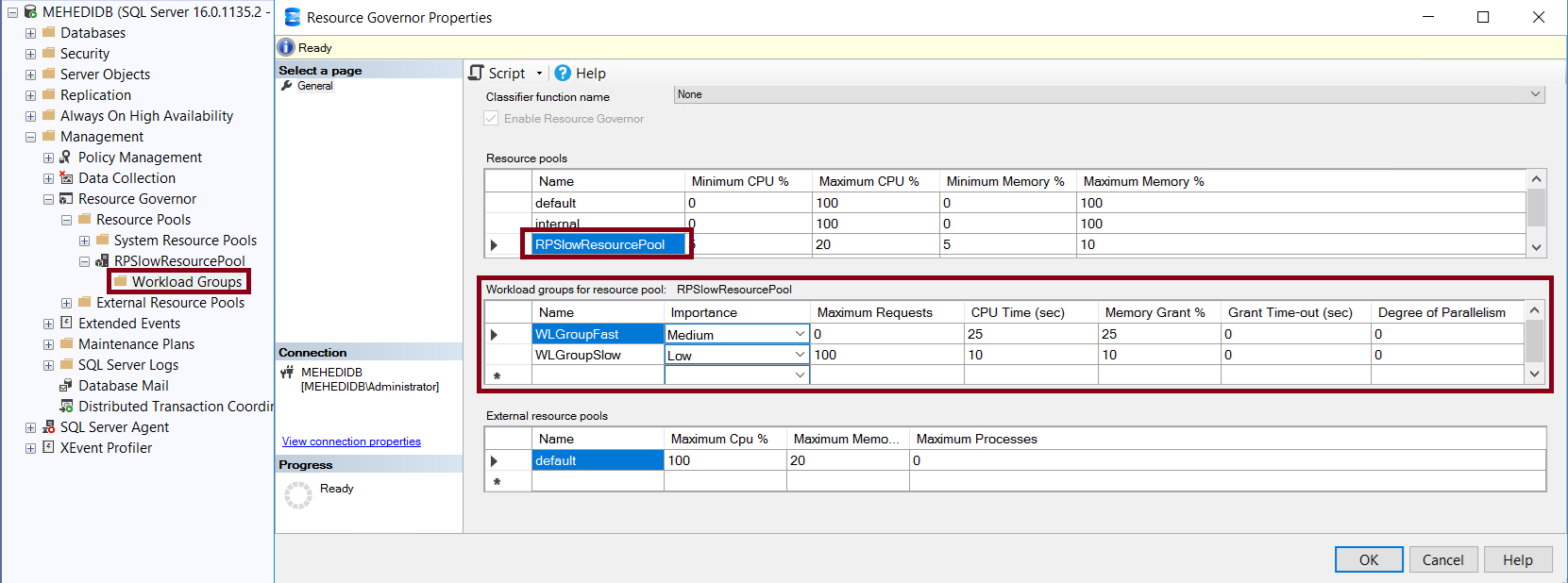
Figure-5: Creating a new Workload Group
Allocating Resources among Resource Pools
Microsoft recommends to distribute resources among multiple pools as per Table-1.
| Pool name |
MIN |
MAX |
Effective MAX |
Shared % |
Comment |
internal |
0 |
100 |
100 |
0 |
Effective MAX and Shared % aren't applicable to the internal pool. |
default |
0 |
100 |
25 |
25 |
Effective MAX = LEAST(100, 100 - (20 + 50 + 5)) = 25
Shared % = Effective MAX - MIN = 25 |
Pool 1 |
20 |
100 |
45 |
25 |
Effective MAX = LEAST(100, 100 - (50 + 5))) = 45
Shared % = Effective MAX - MIN = 25 |
Pool 2 |
50 |
70 |
70 |
20 |
Effective MAX = LEAST(70, 100 - (20 + 5))) = 70
Shared % = Effective MAX - MIN = 20 |
Pool 3 |
5 |
100 |
30 |
25 |
Effective MAX = LEAST(100, 100 - (50 + 20))) = 30
Shared % = Effective MAX - MIN = 25 |
Table-1: Resource allocation among resource pools
Creating Classifier Function
We have already created two SQL Server logins — mehedi and mehedi2. Now, let's create a classifier function that Resource Governor will use to route incoming requests to the appropriate workload group. Requests coming from mehedi will be assigned to WLGroupFast, and requests coming from mehedi2 will be assigned to WLGroupSlow.
use master
GO

--Clasifier Function
CREATE FUNCTION func_WGClasssifier() RETURNS SYSNAME
WITH SCHEMABINDING AS
BEGIN
	DECLARE @WorkLoadName AS SYSNAME
	IF (SUSER_NAME() = 'mehedi')
	BEGIN
		SET @WorkLoadName = 'WLGroupFast'
	END
	ELSE IF (SUSER_NAME() = 'mehedi2')
	BEGIN
		SET @WorkLoadName = 'WLGroupSlow'
	END
	ELSE
	BEGIN
		SET @WorkLoadName = 'default'
	END

	RETURN @WorkLoadName
END
GO

--Disable Resource Governor
ALTER RESOURCE GOVERNOR
DISABLE
GO

--Configure Clasifier Function
ALTER RESOURCE GOVERNOR
WITH
(
	Classifier_Function = dbo.func_WGClasssifier
)
GO

--Enable Resource Governor
ALTER RESOURCE GOVERNOR
RECONFIGURE
GO

-- Query Snippet-2
Checking Workload Group Mapping
Open three separate connections with the logins mehedi, mehedi2 and sa. Run Query Snippet-3 using sa login, for checking session wise workload group mapping. Check the user mehedi and mehedi2 are mapped to WLGroupFast and WLGroupSlow respectively. Others are assigned to default as per our classifier function (Figure-6).
SELECT
    s.session_id,
    s.login_name,
    wg.name AS workload_group,
    rp.name AS resource_pool
FROM sys.dm_exec_sessions s
JOIN sys.dm_resource_governor_workload_groups wg
    ON s.group_id = wg.group_id
JOIN sys.dm_resource_governor_resource_pools rp
    ON wg.pool_id = rp.pool_id
WHERE s.is_user_process = 1
ORDER BY s.session_id

--  Query Snippet-3
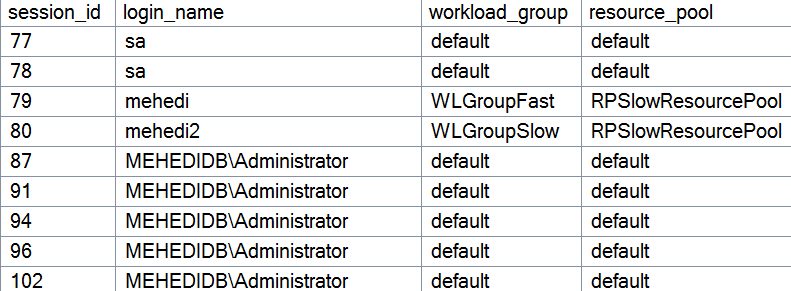
Figure-6: Session wise Workload Group mapping
Why You Should Use Resource Governor
- Prevent a single workload or "noisy neighbor" from consuming all available CPU and memory resources.
- Protect critical OLTP applications from resource-intensive reporting or ad-hoc queries by assigning them higher resource allocation and execution priority.
- Isolate ETL, reporting, and operational workloads running on the same SQL Server instance.
- Limit the effect of runaway queries without affecting the entire SQL Server instance.
Resource Governor Can Backfire
Brent Ozar warns about using resource governor.
- Poorly designed classifier function may slowdown whole system.
- The Resource Governor does not prevent throttled queries from impacting others. By slowing them down, it might mean that they hold locks for longer and actually cause problems for other queries for longer than they would otherwise.
- Resource Governor doesn’t govern all query memory. It only governs query workspace memory used for sorts, joins, and other operations. It doesn’t stop a query from using large amounts of SQL Server’s data cache. Similarly, it doesn’t stop a query from potentially filling up tempdb.
Final Words
Resource Governor is a powerful workload management feature that helps DBAs control how CPU and memory resources are allocated across competing workloads. While it is not a replacement for proper query tuning, indexing, or capacity planning, it can play a vital role in protecting critical applications from resource-intensive processes. By understanding its architecture and limitations, DBAs can use Resource Governor to build more predictable, stable, and efficient SQL Server environments.
References
Going Further
If SQL Server is your thing and you enjoy learning real-world tips, tricks, and performance hacks—you are going to love my training sessions too!
Need results fast? I am also available for 1-on-1 consultancy to help you troubleshoot and fix your database performance issues.
Let’s make your SQL Server to take your business Challenge!
For any queries, mail to mamehedi.hasan[at]gmail.com.